

What You'll Create
In this tutorial, you will use VMAI's AI Subtitle Translator to turn a source SRT/VTT subtitle file into a translated subtitle file.
By the end, you will know how to:
- Upload an SRT or VTT subtitle file.
- Choose a target language.
- Configure formatting, content context, and glossary terms.
- Check translation progress.
- Download or edit the translated subtitle file.
"Note: Running a translation requires a signed-in account. You can view the page and select a file, but starting the translation requires an account and enough Credits.
Before You Start
Requirements
- A VMAI account.
- A
.srtor.vttsubtitle file. - The target language you want to translate into.
- Optional: a short glossary of source terms and preferred translations.
Check Credits
Subtitle translation is currently calculated at 1 Credit per 10 subtitle entries, with a minimum of 1 Credit. Check the page's estimate before starting the translation.
English content should use Credit(s) for this unit. Korean content uses 이용권.
Step 1: Open Subtitle Translator
Open the public AI Subtitle Translator page.
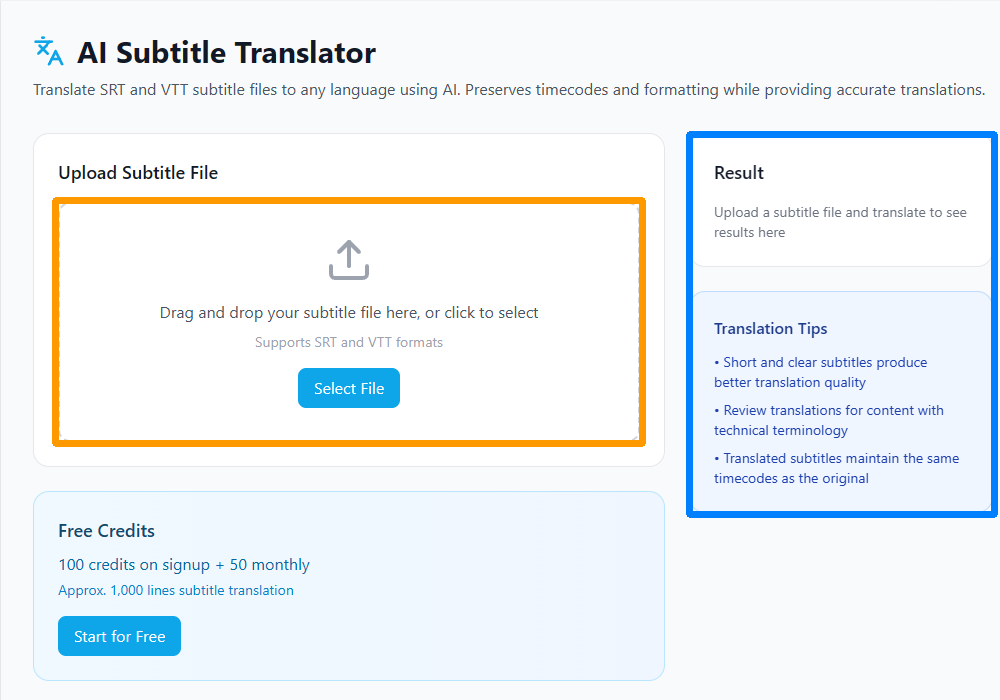
The screen has two main areas.
| Area | What It Does |
|---|---|
| Upload Subtitle File | Drag and drop an SRT/VTT file, or choose one from your device. |
| Result and Tips | Shows translation status, download/edit actions, and quality tips. |
"Tip: If this is your first time, test with a short sample subtitle file. Fewer entries make the result easier to review.
Step 2: Upload an SRT or VTT File
Click the upload area or drag your subtitle file into it. The current UI accepts .srt and .vtt files.
After upload, the page shows the filename and subtitle count. That count is also used for the Credit estimate.
Signed-in users can also browse subtitle files from the media library. Use that option when the file is already stored in VMAI.
Step 3: Choose a Target Language
After the file loads, the Target Language dropdown appears. Choose the language you want for the translated subtitle file.
The current UI includes options such as English, Korean, Japanese, Chinese, Spanish, French, German, Portuguese, Russian, Italian, Vietnamese, Thai, Indonesian, Arabic, and Hindi.
"Note: VMAI blog and learning content currently publish in
enandko. The subtitle translator's target-language list is separate from the site's content-language list.
Step 4: Improve Quality with Advanced Settings
Open Advanced Settings to tune three quality controls.
Preserve Original Formatting
This is enabled by default. Keep it on when the source subtitles use simple formatting such as bold or italic text that should survive translation.
Add Content Context
Describe the content briefly: cooking show, gaming commentary, product demo, course lesson, and so on. Context helps the translation choose wording that fits the video.
Example:
textSubtitle production tutorial for beginner creators
Add Glossary Terms
If certain terms must be translated in a specific way, add them to the glossary.
| Source Term | Preferred Translation |
|---|---|
| Credits | 이용권 |
| Subtitle Burner | 자막 입히기 |
| creator workflow | 크리에이터 워크플로우 |
The more specialized your video is, the more useful a glossary becomes.
Step 5: Start Translation
Review the file and settings, then click Translate.
During processing, the page shows progress. Translation time can vary based on subtitle count and service load.
If you do not have enough Credits, the translation cannot start. Check your available Credits and the estimated total, then top up or change plans if needed.
Step 6: Review and Download the Result
When translation is complete, the result panel shows the completed status.
You can then:
- Download the translated subtitle file.
- Edit the current result.
- Start a new translation.
- View translation history when signed in.
- Re-download or edit completed history items when available.
The downloaded filename adds the target language code to the original name. For example, translating intro.srt into English creates a filename like intro_en.srt.
Review Checklist
Before publishing, check these items:
- Do numbers, dates, and prices still match the source?
- Are brand and product names translated the way you intended?
- Are any lines too long for the screen?
- Does the tone match the video?
- Do specialized terms match your glossary?
- When applied to the video, does the timing still feel natural?
"Tip: A translation can be accurate and still be hard to read as a subtitle. Shorten long lines when needed, and make sure adjacent captions flow naturally.
Troubleshooting
I see “Only SRT or VTT files are supported”
Check that the file extension is .srt or .vtt. This tool does not directly translate document files or video files.
The Translate button is disabled
Check whether you are signed in and have enough Credits. Starting a subtitle translation is available only to authenticated users.
Technical terms are translated differently than expected
Use content context and glossary entries in Advanced Settings. Product names, course terms, and brand phrases are safest when specified in a glossary.
I want to download the result later
Signed-in users can view recent translations in the history panel. Because result files may expire, download important subtitles and keep a copy with your project assets.
Next Steps
After translation, continue with the next tool in your workflow.
| Next Task | Tool to Use |
|---|---|
| Create source subtitles from audio or video | Subtitle Generator |
| Burn translated subtitles into a video | Subtitle Burner |
| Create a new video from a subtitle file | Create New Video |
Keeping subtitle files separate makes it much easier to expand the same video into multiple languages.
Frequently Asked Questions
Should I use SRT or VTT?
Both are supported. Choose the format required by your editor or publishing channel. VTT is common for web players; SRT is often convenient for broad editing and upload compatibility.
Does translation change timecodes?
The workflow is designed around preserving the original subtitle timing. Still, translated lines can become longer, so always review readability with the video.
Can I publish the translation immediately?
It is better to review it first. Treat AI translation as a fast draft, then check numbers, names, terminology, and tone before publishing.
Tutorial Complete!
You've read this tutorial. Move on to the next step.
Getting Started with VMAI: Create Your First Video from an Idea
Add a Watermark or Logo to a Video
Found this tutorial helpful?
Subscribe to get notified when we publish new tutorials and guides. No spam, unsubscribe anytime.
Comments
Please login to leave a comment
LoginNo comments yet. Be the first to comment!