
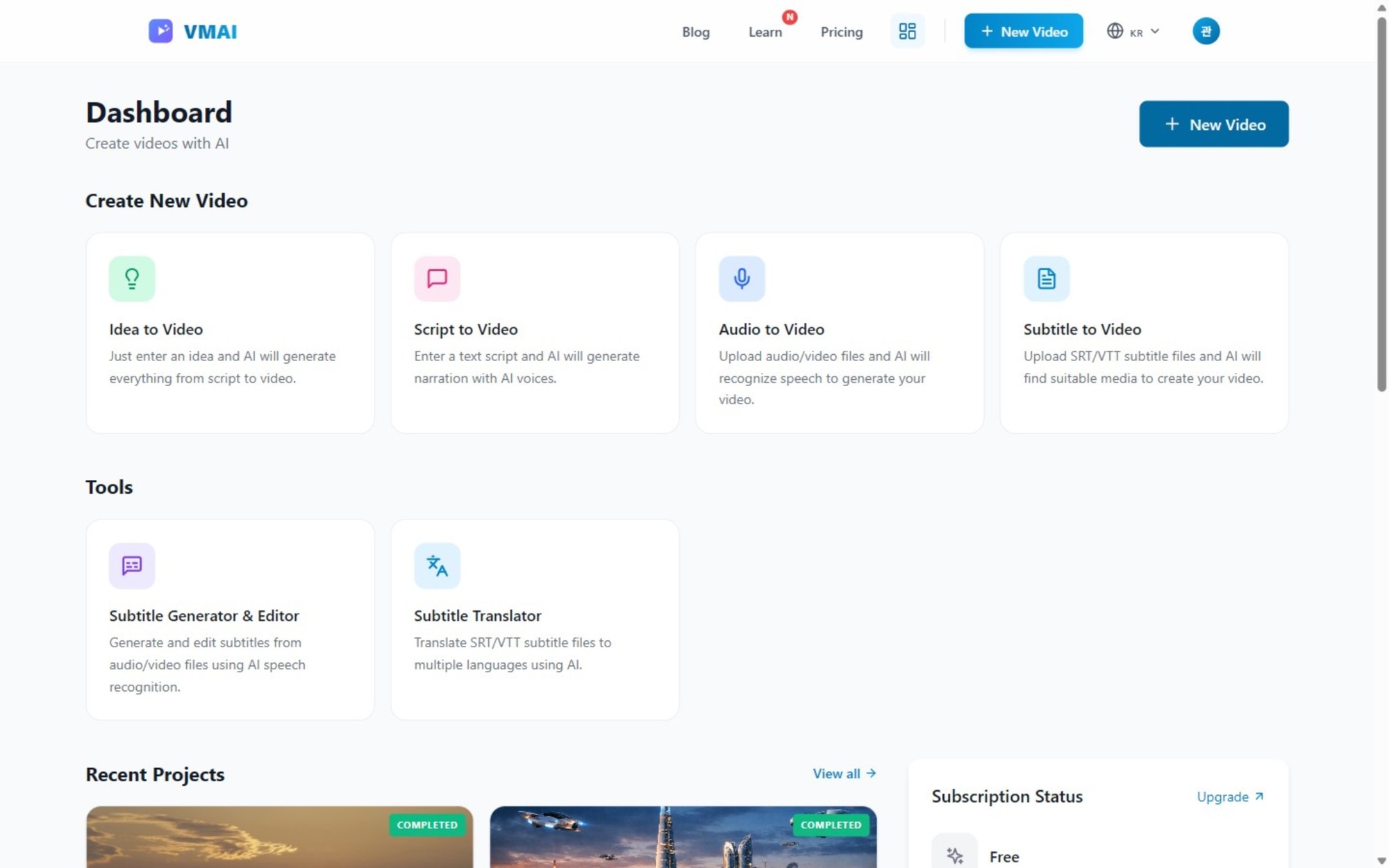
Create Your First AI Video in 3 Minutes
New to VMAI? Follow this guide to create a complete video from just one line of idea.
What you'll learn in this tutorial:
- Creating a VMAI account and exploring the dashboard
- Auto-generating scripts with Idea Mode
- Video settings (resolution, TTS voice, transitions)
- Reviewing and modifying AI-selected media
- Final video rendering and download
Before You Start
What You Need
- Email address or Google account
- An idea for the video you want to create (one line is enough!)
What You Can Do with Free Plan
| Item | Free Plan |
|---|---|
| Monthly video generation | 4 videos |
| Maximum video length | 3 min |
| Resolution | 720p HD |
| TTS voices | 10 types |
Start immediately without a credit card.
Step 1: Sign Up and Log In
1-1. Go to Sign Up Page
Navigate to the signup page.
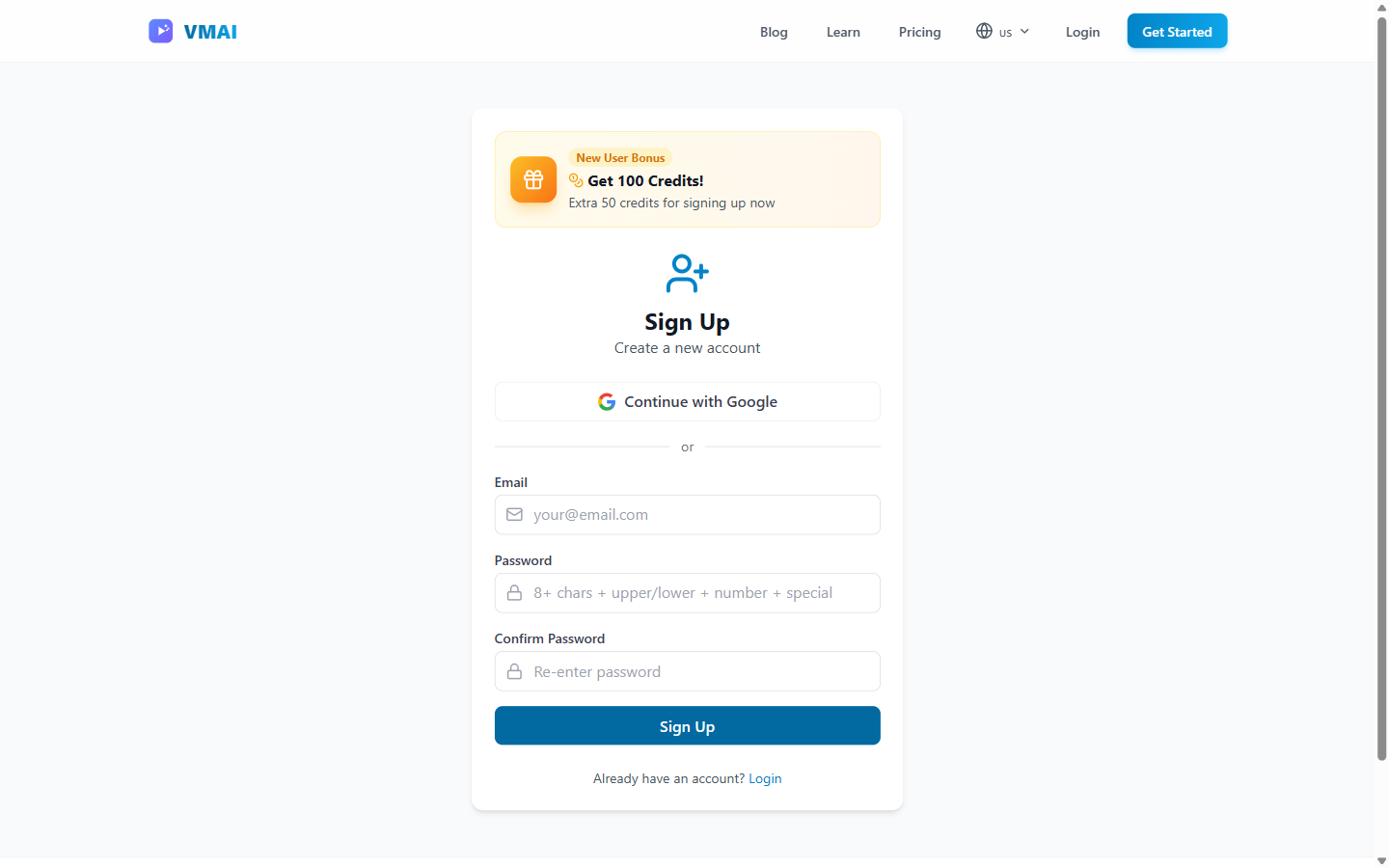
1-2. Choose Sign Up Method
Choose from two options:
- Sign up with Google (Recommended): Complete with one click
- Sign up with Email: Enter email and password
"💡 Tip: Signing up with Google is convenient as you don't need to remember a separate password.
1-3. Email Verification (for email signup)
If you signed up with email, check your inbox for the verification email and click the link.
Step 2: Explore the Dashboard
After logging in, you'll see the dashboard.
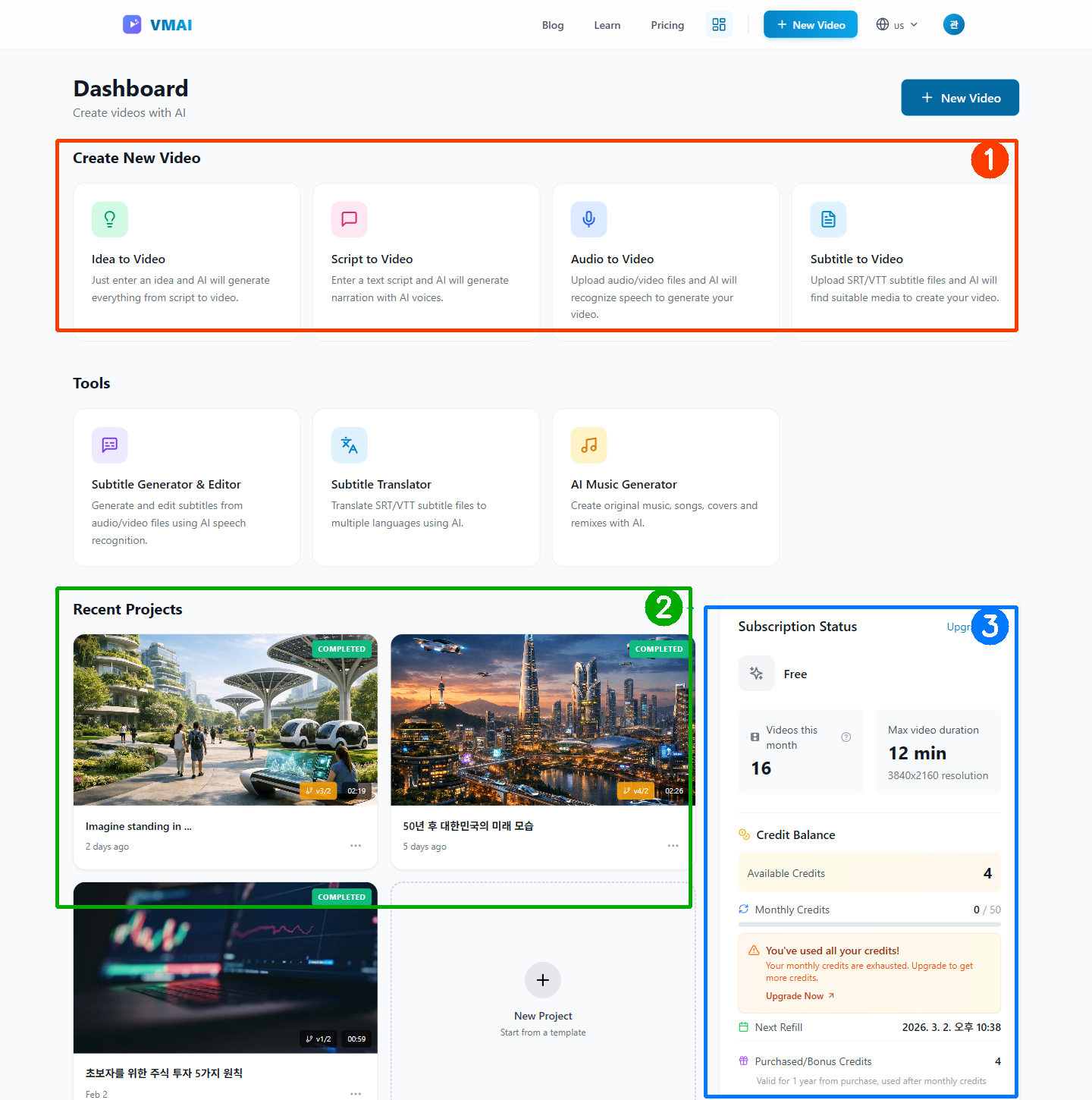
Key Dashboard Areas
| Area | Description |
|---|---|
| Quick Start Cards | Start with any of 4 input modes |
| Recent Jobs | Videos in progress or completed |
| Usage Status | Remaining video generations this month |
Check Your Welcome Bonus
New users receive 50 credits on signup. Use these for additional features.
Step 3: Create New Video - Idea Mode
Now let's create your video!
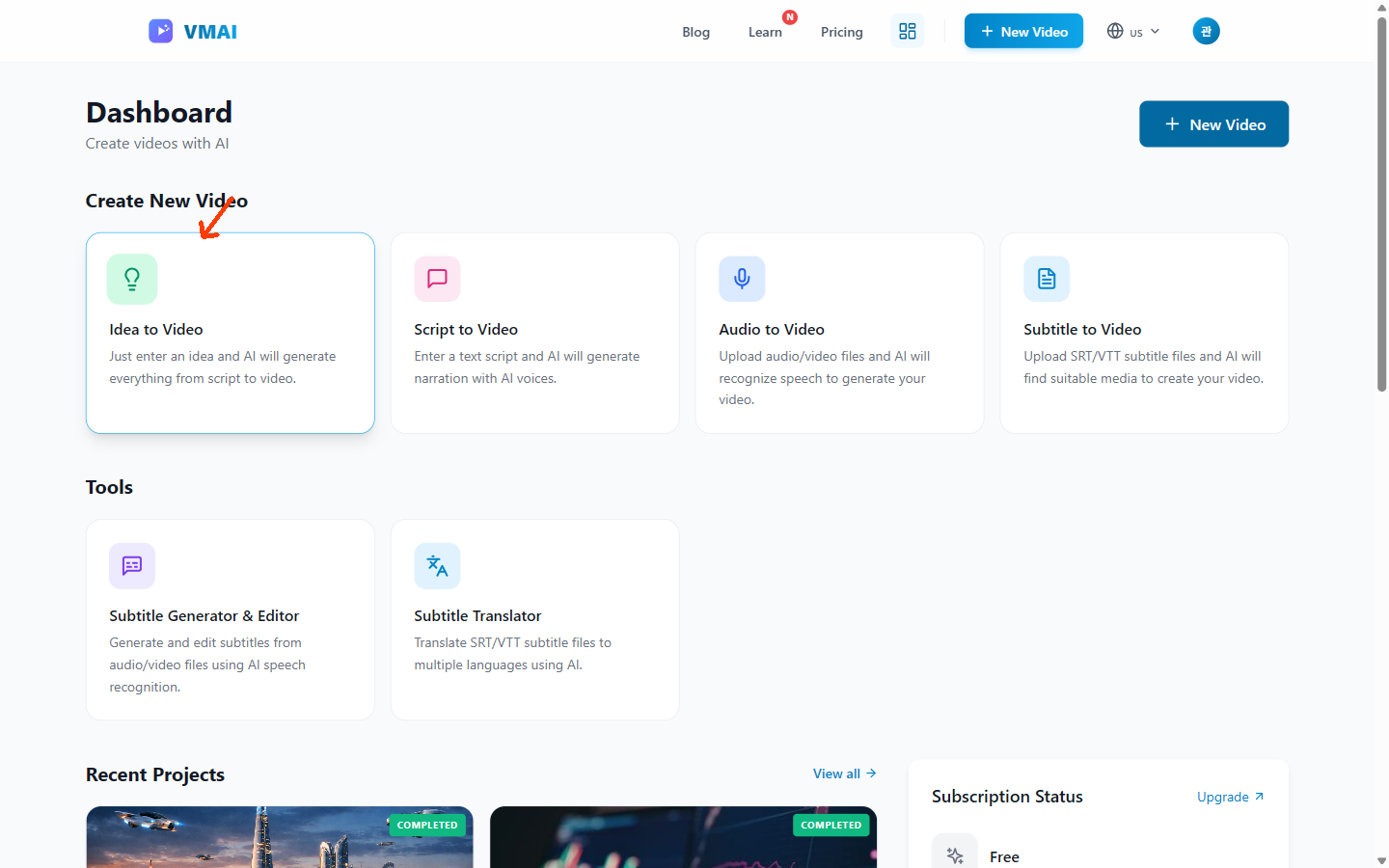
3-1. Select Idea Mode
Click the "Idea" card on the dashboard.
3-2. Enter Your Idea
Enter your idea for the video. One line is enough!
Good idea examples:
- "5 principles of stock investing for beginners"
- "3 habits to do right after waking up"
- "Personality differences between dogs and cats"
- "How to boost productivity when working from home"
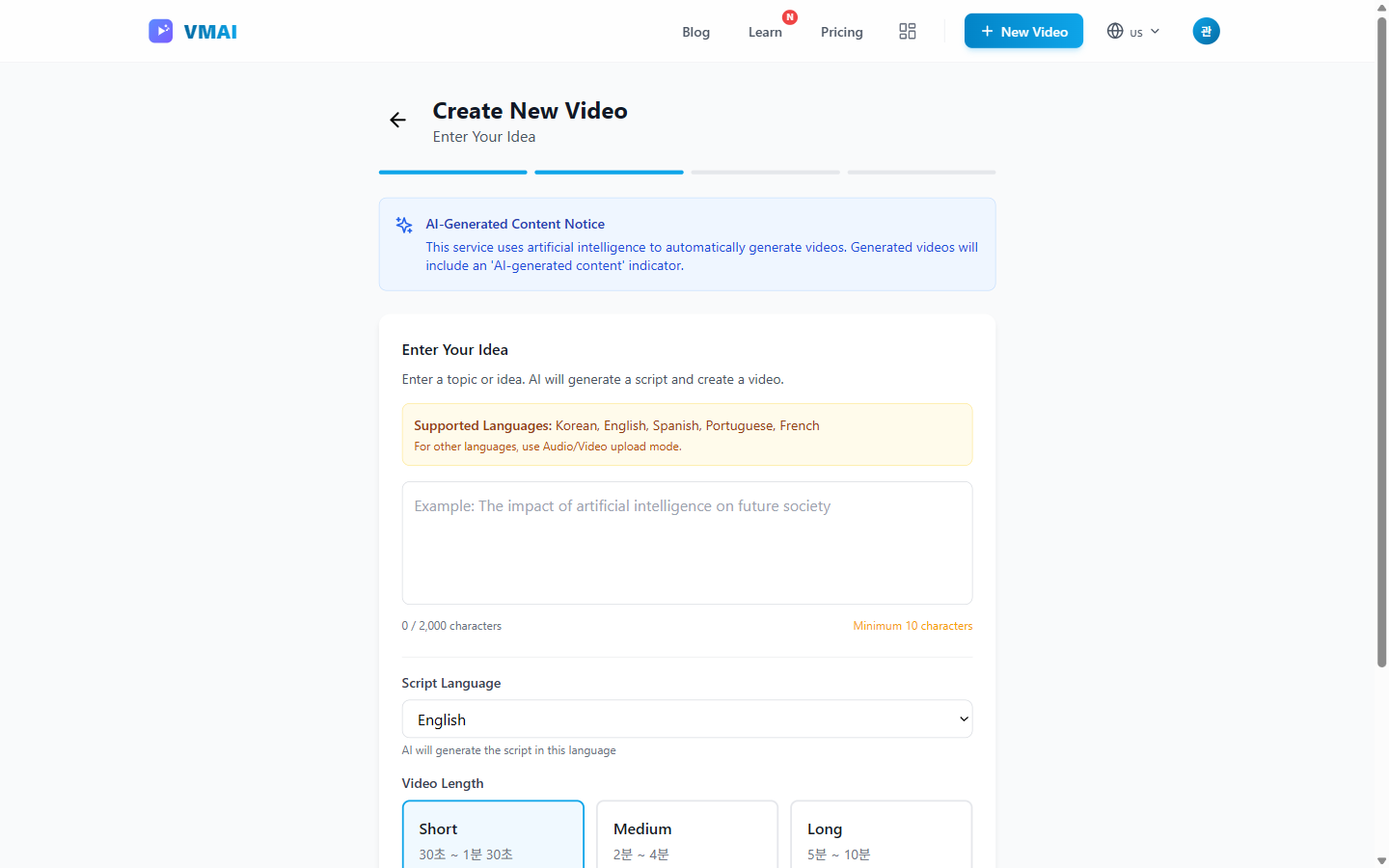
"💡 Tip: Including specific numbers helps AI generate more structured scripts. "5 investment tips" is better than just "investment tips".
3-3. Video Settings
After entering your idea, you can adjust these settings:
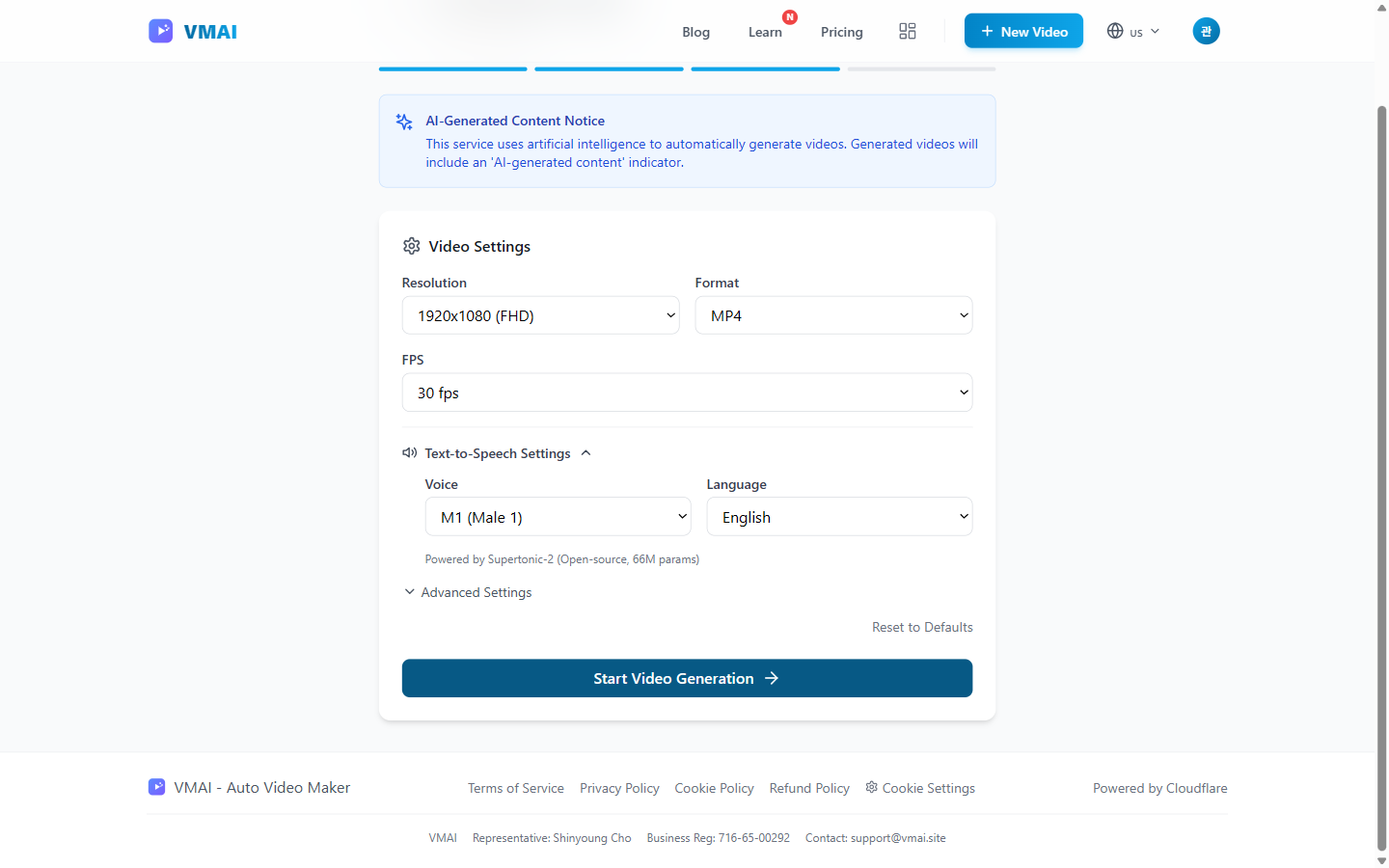
Basic Settings
| Setting | Description | Recommended (Beginner) |
|---|---|---|
| Target Length | Short/Medium/Long | Short (Free plan) |
| Resolution | 720p ~ 4K | 720p (Free plan) |
| FPS | 24/30/60 | 30 |
TTS (Voice) Settings
| Setting | Description |
|---|---|
| Voice Selection | Choose male/female voice |
| Language | 5 languages including English, Korean |
"🎧 Click the play button next to each voice to preview.
Subtitle Settings
| Setting | Description |
|---|---|
| Show Subtitles | ON/OFF |
| Position | Bottom/Center |
| Font Style | Default, Bold, etc. |
3-4. Generate Script
Click "Generate Script" and AI will write a professional script based on your idea.
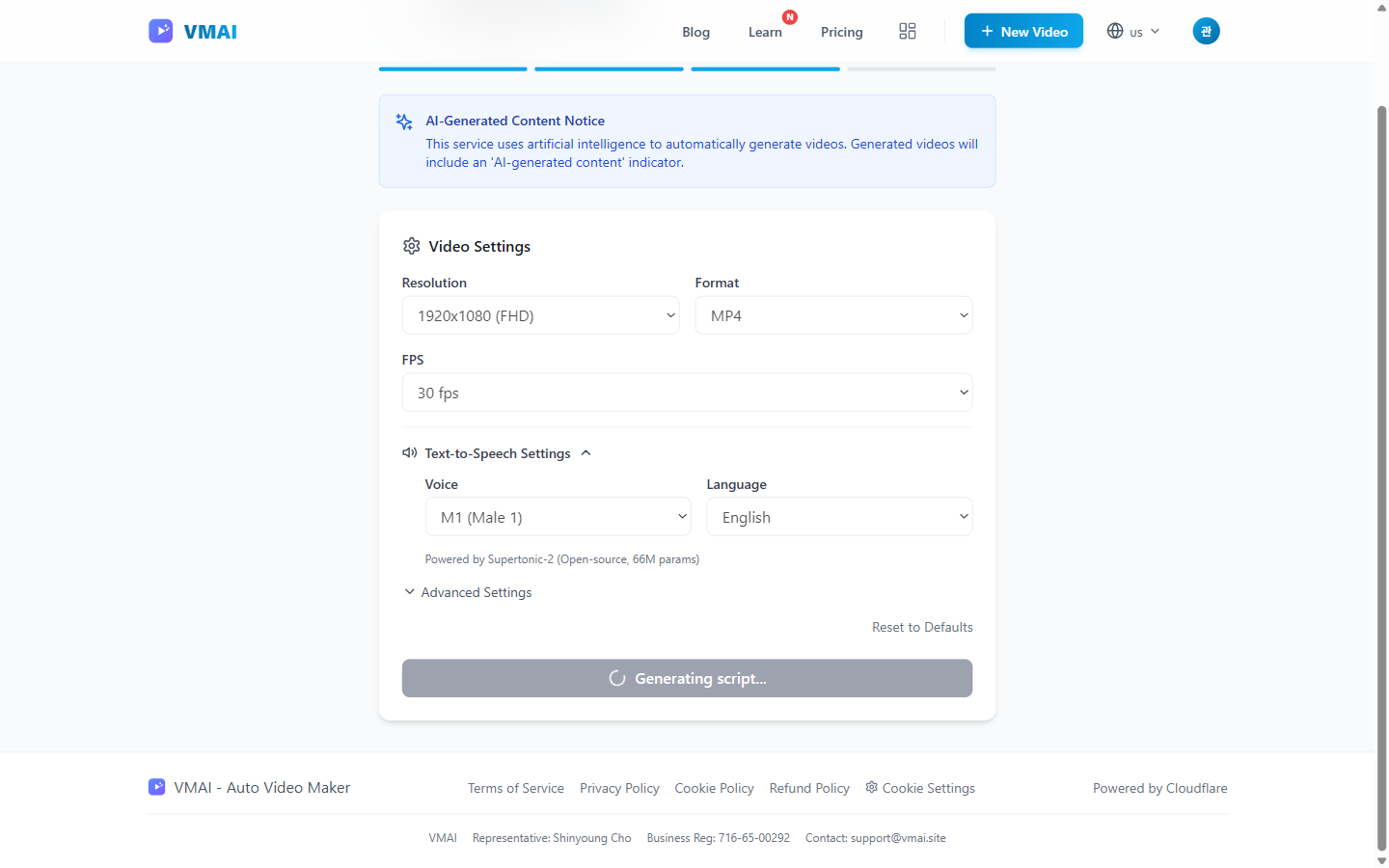
Usually takes about 10-20 seconds.
3-5. Review and Edit Script
Review the generated script.
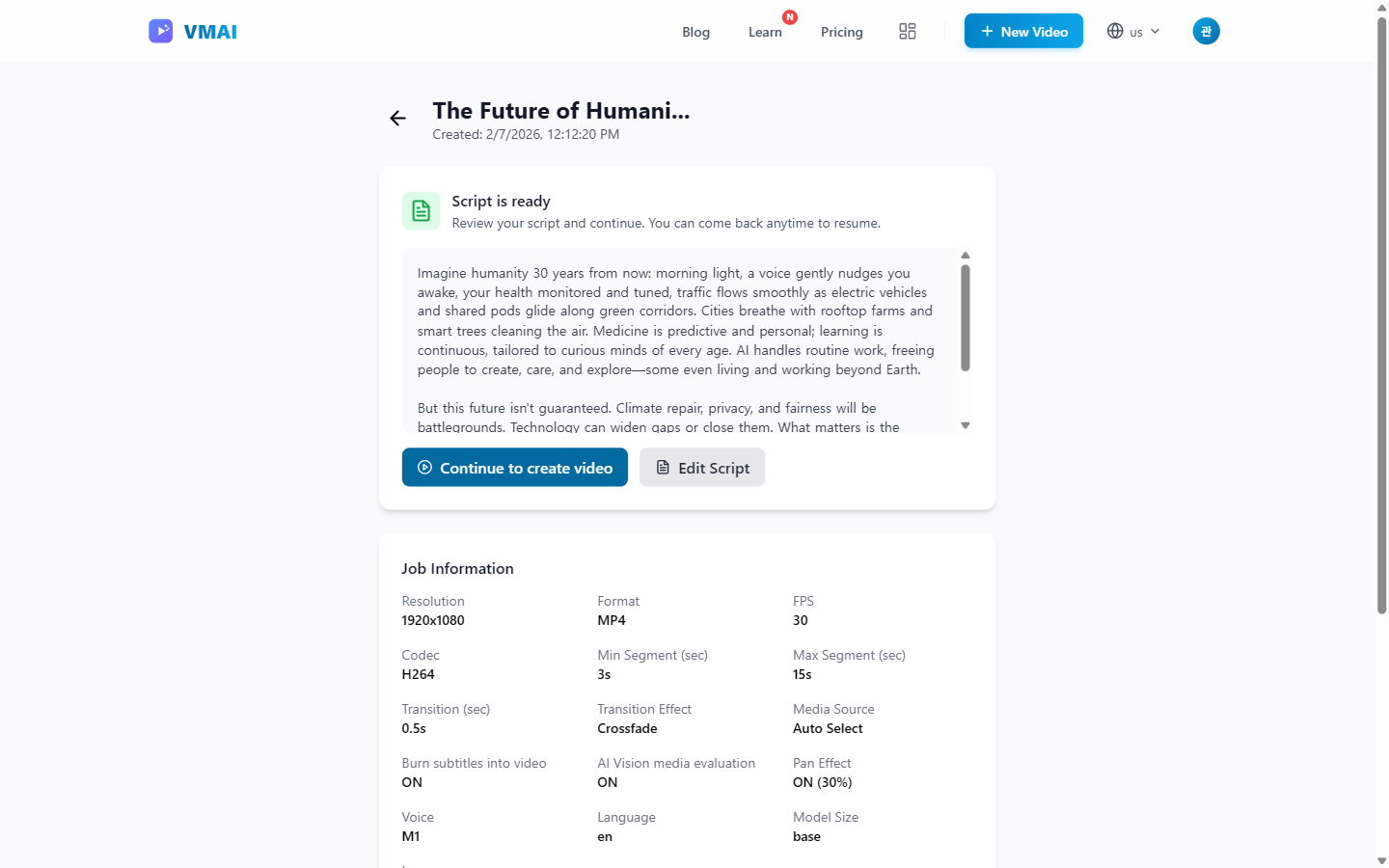
If you need to edit:
- Click the script area to enter edit mode
- Modify as needed
- Click "Regenerate" if not satisfied
"💡 Tip: 70-80% of AI-generated scripts can be used as-is, but it's good to manually edit brand names or specific expressions.
Step 4: Media Search and Review
Once the script is ready, click "Search Media".
4-1. AI Media Search
AI automatically searches for images and videos matching each sentence.
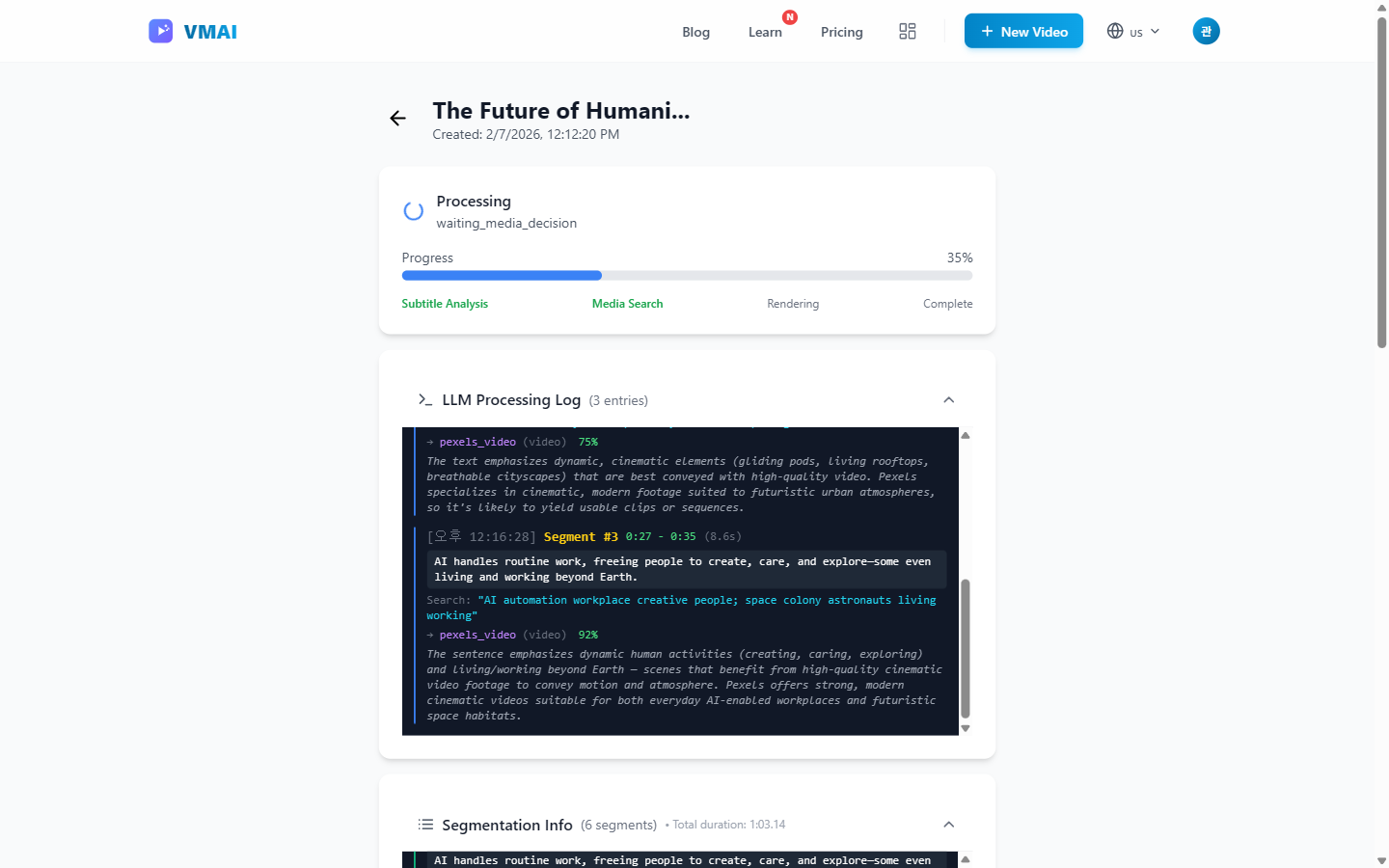
During this process:
- Searches related media from Pixabay, Pexels
- Vision AI verifies content match
- Auto-researches if unsuitable
- AI Image Generation: If no suitable image is found in stock media, AI generates custom images optimized for your content
"🚀 Coming Soon: AI video generation is also in the works. Soon you'll be able to generate not just images, but videos with AI!
4-2. Media Review Screen
When search completes, you'll see the media review screen.
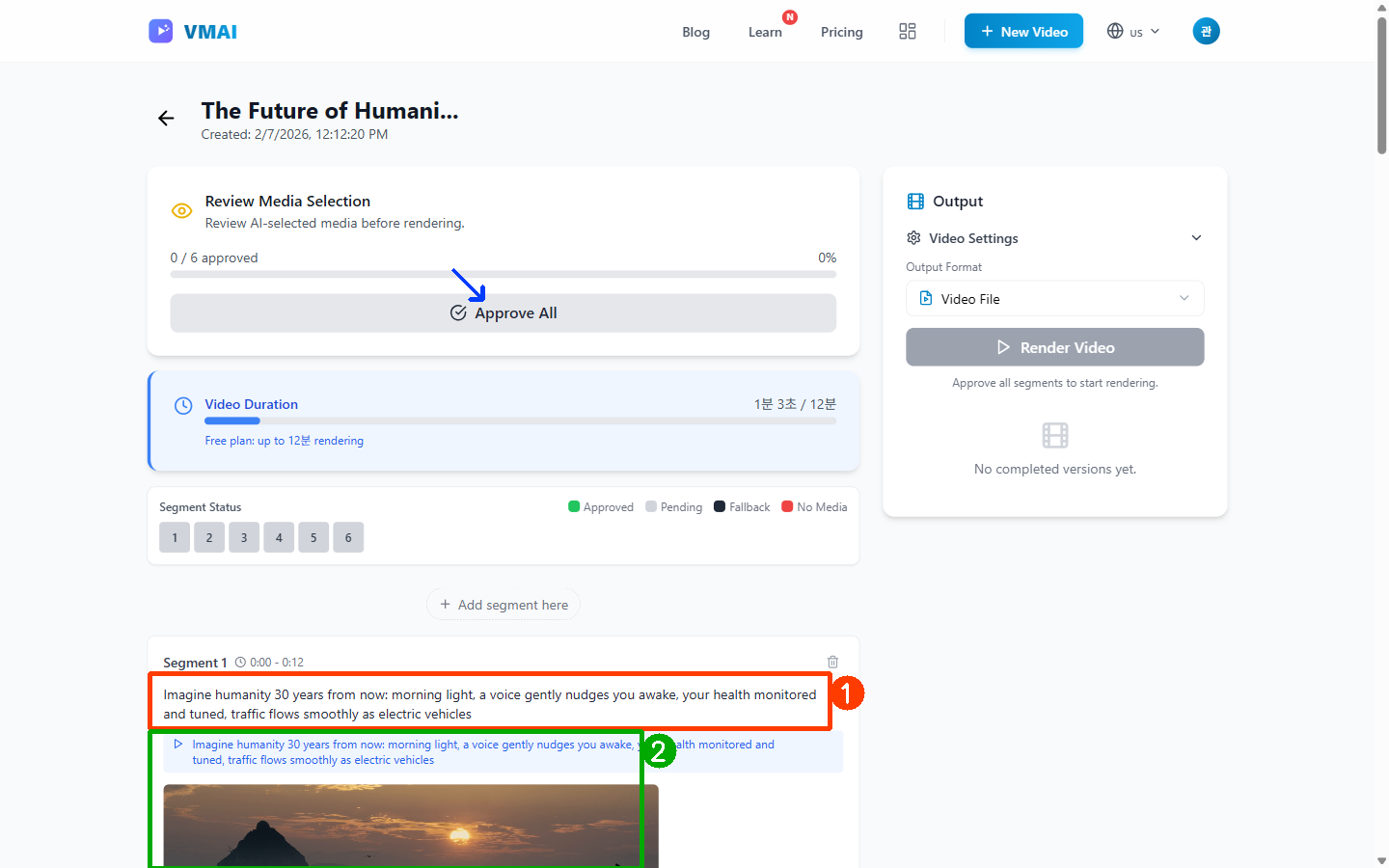
For each segment (scene):
- Script Text: Narration for that scene
- Selected Media: Image or video chosen by AI
- Vision AI Reasoning: Why this media was selected
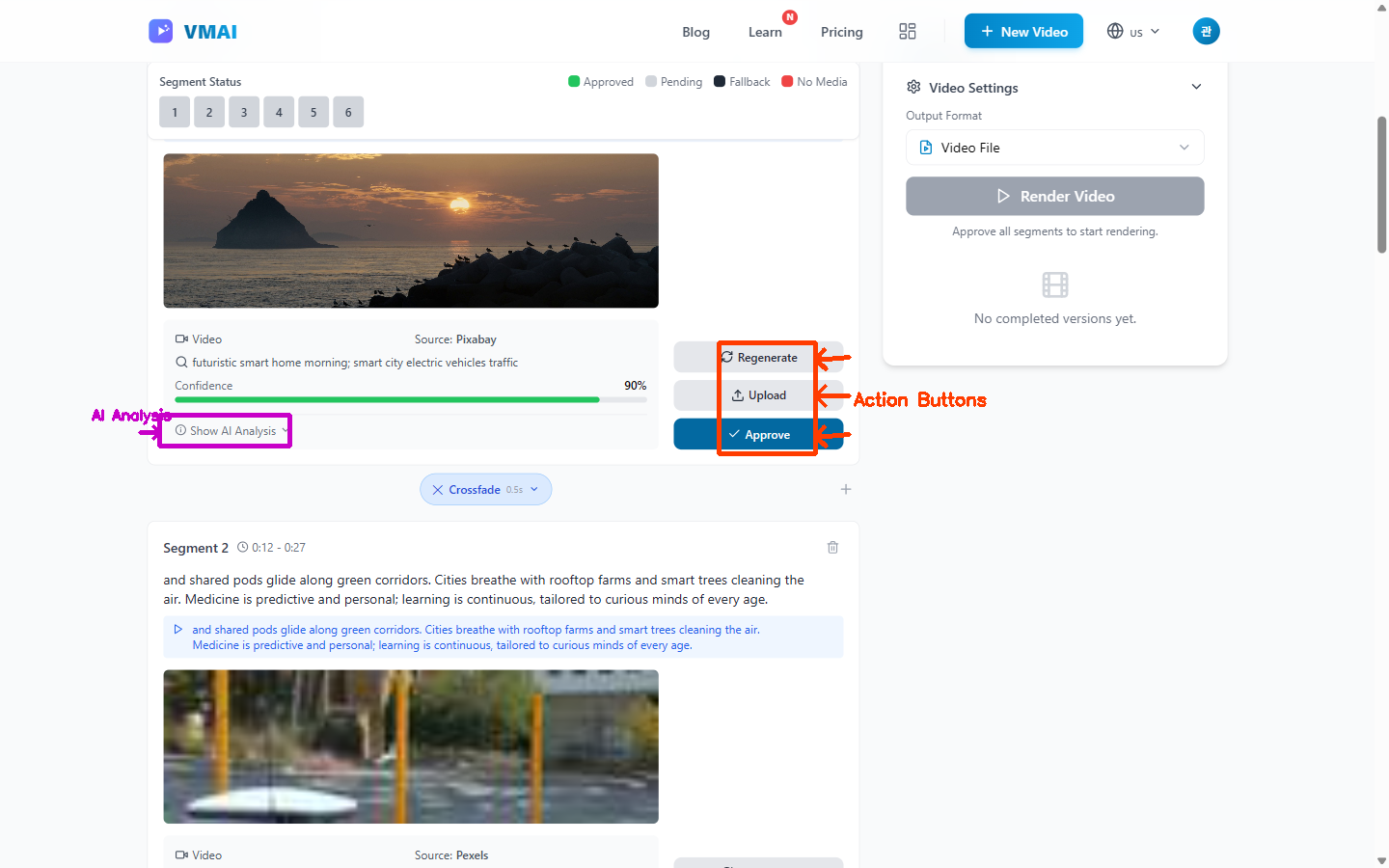
4-3. Modifying Media
If you don't like certain media:
Option 1: Re-search
- Click "Re-search" button for that segment
- AI will find different media
Option 2: Upload your own
- Click "Upload" button
- Select image/video from your computer
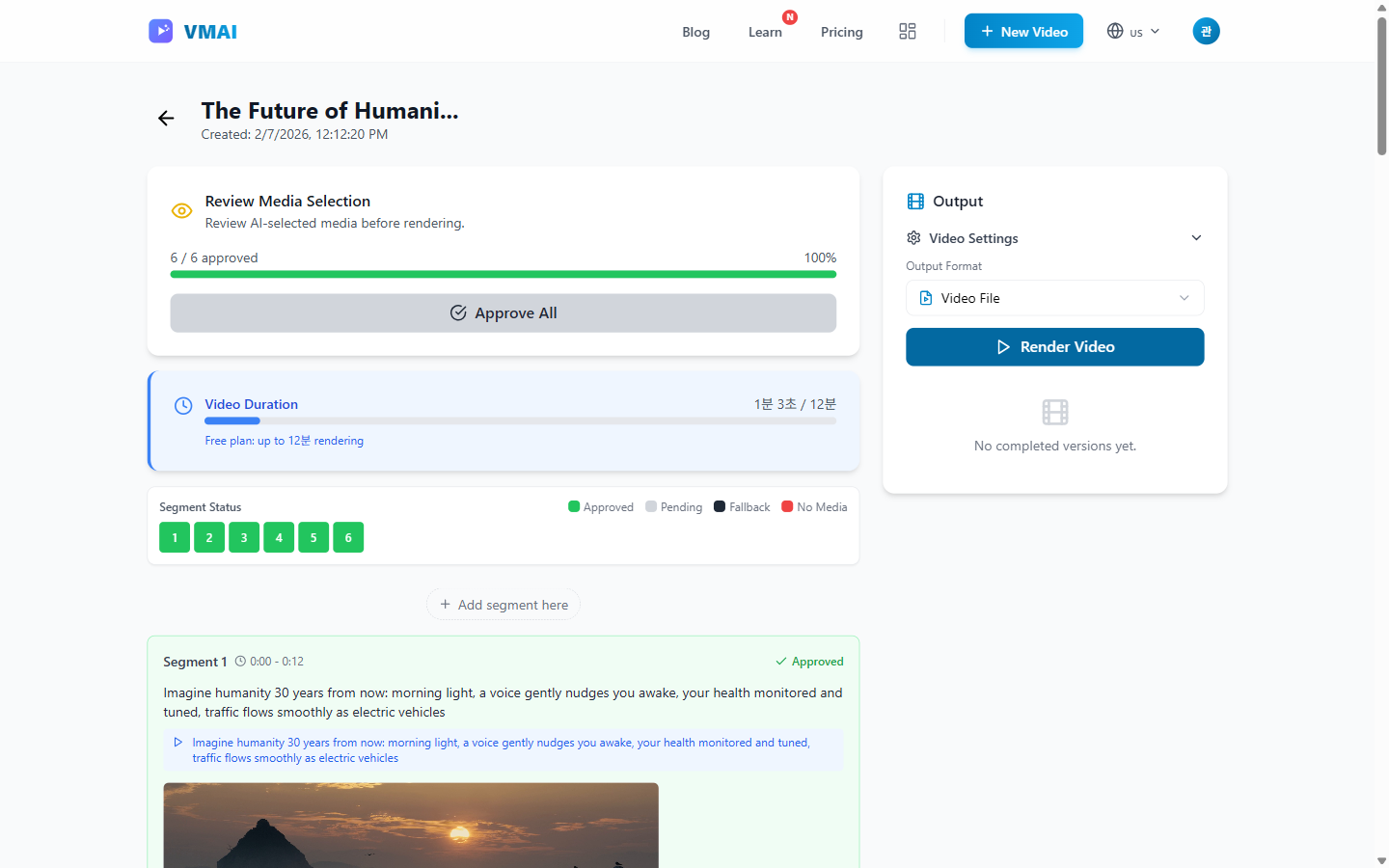
4-4. Approve All
When all media looks good, click "Approve All".
"💡 Tip: It doesn't have to be perfect! This is your first video—move quickly and review more carefully on your next one.
Step 5: Video Rendering
5-1. Start Rendering
Click "Start Rendering" to begin final video generation.
5-2. Check Progress
During rendering, you can check real-time progress.
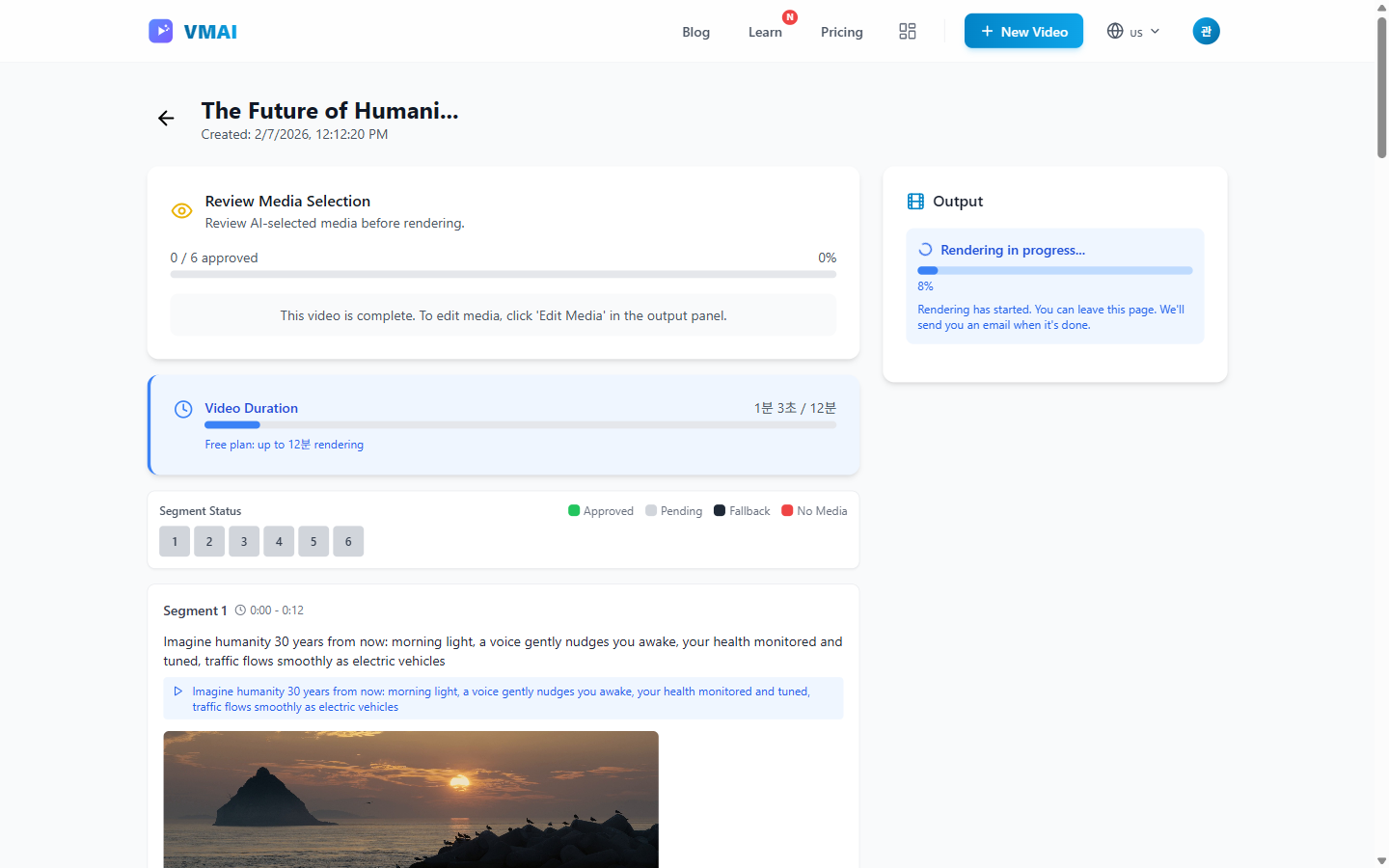
| Stage | Description | Estimated Time |
|---|---|---|
| Voice Generation | Create narration with TTS | 10-30 sec |
| Media Processing | Prepare images/videos | 20-60 sec |
| Encoding | Generate final video | 30-120 sec |
"You can close the page during rendering. Check the dashboard later for results.
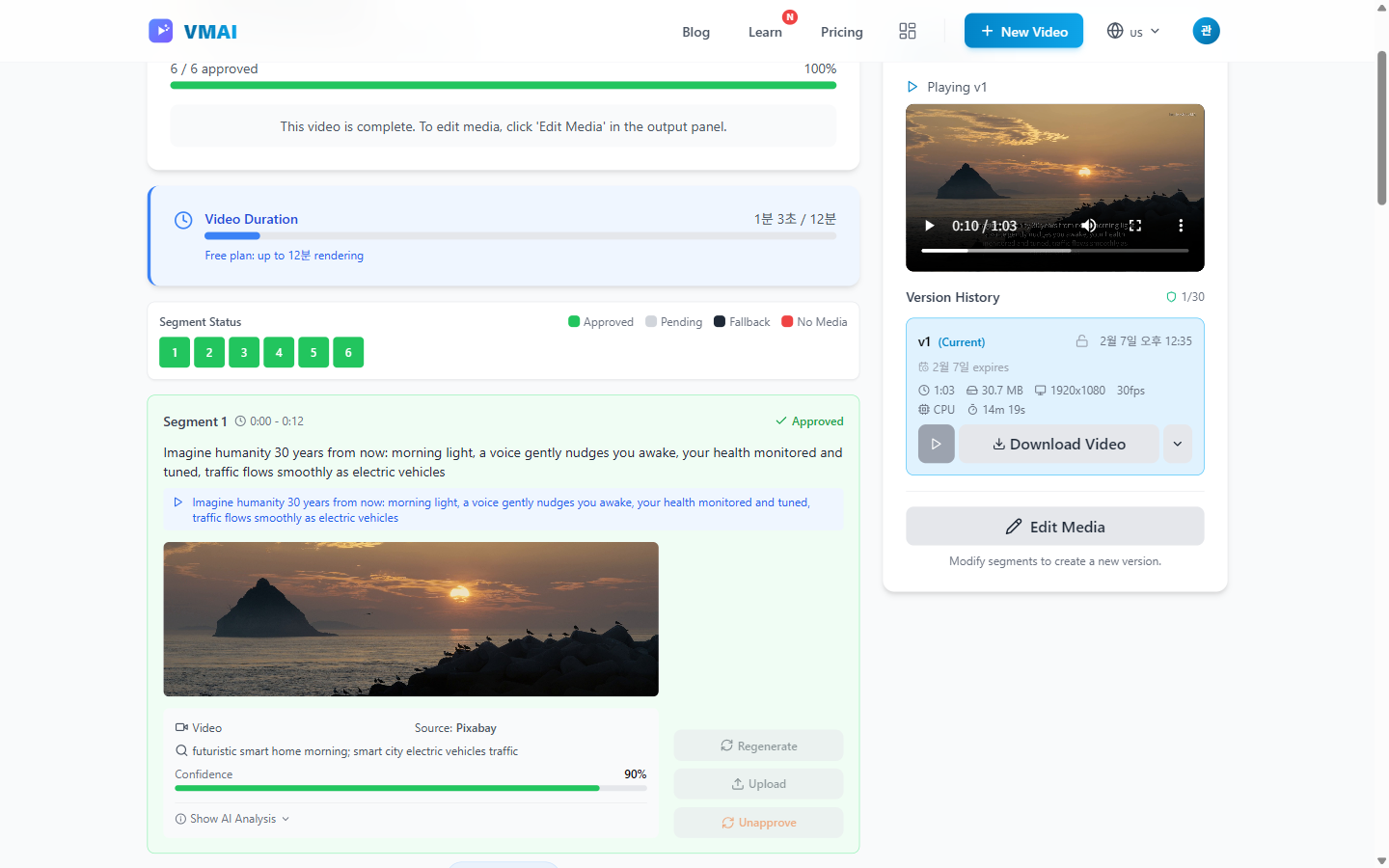
5-3. Complete!
You'll receive a notification when rendering is complete.
Step 6: Preview and Download
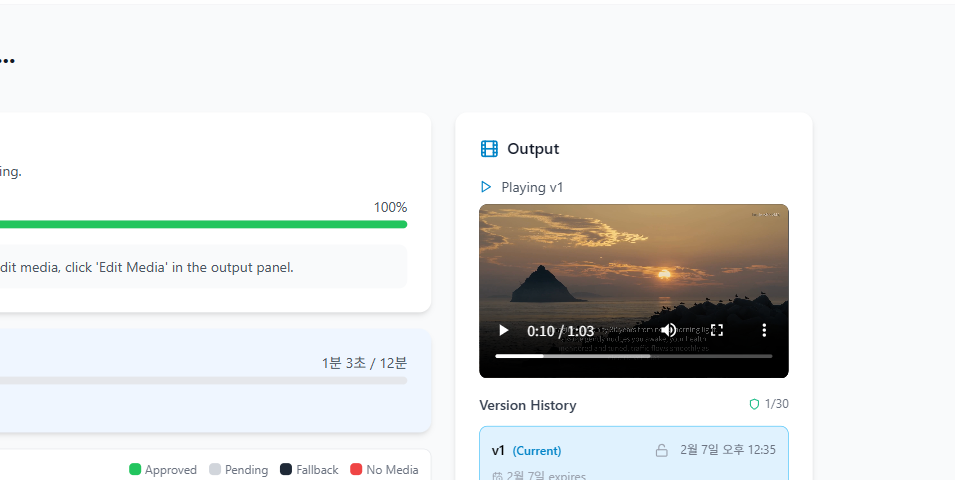
6-1. Preview
Play the generated video directly in your browser.
6-2. Download
If you're happy with it, click "Download" to save as MP4.
6-3. Share (Optional)
Create a shareable link with the "Generate Share Link" button.
🎉 Congratulations!
You've successfully created your first AI video!
Next Steps
Now that you've learned the basics, try more features:
| What to Learn Next | Description |
|---|---|
| Using Script Mode | Create videos from existing text |
| Using Audio Mode | Convert audio files to videos |
| Advanced Video Settings | Use transitions, Ken Burns effect |
| Mastering Media Review | Tips for perfect media selection |
Need Help?
- 💬 Leave a comment with your question
- 📧 Contact [email protected]
- 📚 Check FAQ for common questions
Frequently Asked Questions
Q: How many videos can I create with the free plan?
Up to 4 per month. Resets on the 1st of each month.
Q: How do I control video length?
Select "Target Length" in settings. Free plan maximum is 3 minutes.
Q: What if I don't like the script?
Edit it directly or click "Regenerate". You can regenerate unlimited times.
Q: How long does rendering take?
Depends on video length and resolution, but typically 5 minutes for a 1-minute video.
Q: Can I upload my video to YouTube?
Yes, you can use it freely for commercial purposes. Just check the license terms of media sources (Pixabay, Pexels).
If this guide helped you, let us know in the comments! It helps us create better tutorials. ✨
Tutorial Complete!
You've read this tutorial. Move on to the next step.
Found this tutorial helpful?
Subscribe to get notified when we publish new tutorials and guides. No spam, unsubscribe anytime.
Comments
Please login to leave a comment
LoginNo comments yet. Be the first to comment!