
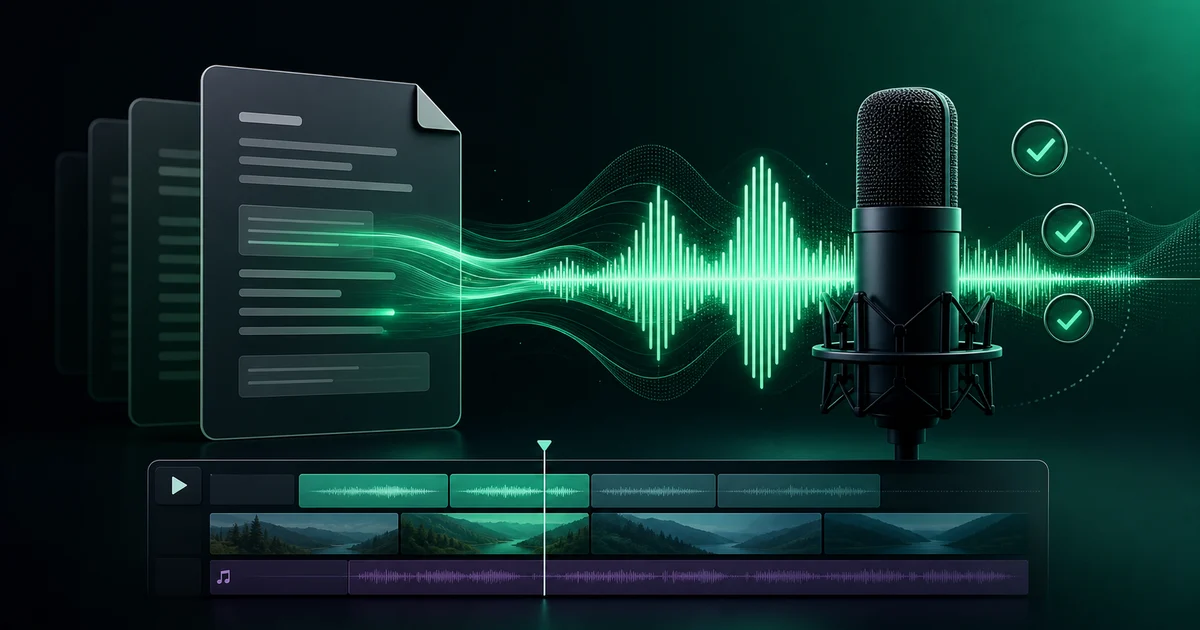
AI Voice Is Not Just Text Being Read Aloud
Text to speech looks simple: paste a script, choose a voice, and click generate. The surprise usually comes later. The voice may sound too stiff for the video, numbers may be spoken awkwardly, the voice may not fit the selected language, or the download format and Credits may need a second look after the fact.
A voiceover changes the mood of a video quickly. So the better question is not “Can this tool generate audio?” It is can this workflow create audio that is natural enough to use, controlled enough to edit, and safe enough to publish?
Use the seven checks below before creating a voiceover with VMAI AI TTS Voice Generator.
1. Did you prepare the script for listening, not reading?
A blog paragraph, product note, or presentation script may look fine on the page but sound strange when spoken. Numbers, abbreviations, symbols, parentheses, URLs, long sentences, and visual references can make a voiceover feel mechanical.
Review these first.
| Script element | What to check for audio |
|---|---|
| Numbers and units | Will a date, version, or price be spoken naturally? |
| Abbreviations | Will listeners understand the letters when read aloud? |
| Long sentences | Can the sentence be heard in one breath? |
| Lists | Do pauses make the structure clear? |
| Visual references | Does “here” or “above” still make sense without looking? |
VMAI TTS includes a TTS Script Preprocessing action and an editable preprocessed text preview. Use it to make numbers, symbols, and abbreviations more speech-friendly before generation. Still review the result yourself; the final script should match the video tone, not only the tool’s output.
2. Are you choosing language and voice separately?
Voice choice is not only about male versus female, bright versus calm, or formal versus casual. Some voices are optimized for a specific language, and multilingual voices can still vary in pronunciation quality.
A safer order is:
- choose the main language of the video;
- filter to voices that support that language;
- listen for pronunciation before personality;
- decide whether multilingual videos should keep one voice or use language-specific voices.
VMAI AI TTS Voice Generator puts language and voice selection in the same workflow. Some voices show an optimized language, and the page can warn when the selected voice and language may not be the best match. Start with “least awkward in this language,” then choose the personality.
3. Are you treating browser and server generation as the same workflow?
AI voice generation usually falls into two practical modes.
| Mode | Best for | Check first |
|---|---|---|
| Generate on your device | Quick tests with voices marked Free | Desktop browser capability, first-use download, keeping the tab active |
| Generate on server | Wider voice options, saved history, timeline workflows | Sign-in, estimated Credits, processing time |
In VMAI, voices marked Free can be generated on your device at no cost, while server generation shows the estimated Credits before you start. Browser generation is useful for fast samples and cost control, but it depends on the user’s device and browser state. Server generation fits a more durable workflow, but it requires the account and Credit checks to be clear.
Do not send a long final script to server generation immediately. First make short samples, reduce the voice candidates, then generate the final version.
4. Are speed and tone controls doing too much?
A voiceover becomes tiring when it is only slightly too fast. It can sound like an ad when the tone is only slightly too exaggerated. In tutorials, product demos, and lessons, clarity should usually beat emotion.
VMAI exposes speed control from 0.5x to 2.0x. Some voices also support natural-language emotion or tone instructions. The best starting point is usually the default speed plus a short, restrained tone direction.
For example:
- product demo: calm and clear;
- short-form hook: cheerful and energetic;
- lesson: minimal emotion, stable pronunciation;
- brand video: test several one-sentence samples before committing.
A longer tone prompt is not automatically better. Use just enough direction for the viewer to follow the message.
5. Are you generating a long script in one piece?
The current VMAI TTS input accepts up to 5,000 characters per generation. Staying under the limit does not mean one long generation is always the best option.
Long scripts create practical problems.
- Pauses between sections may feel too flat.
- A change in tone may be needed halfway through.
- One corrected sentence may force you to regenerate too much audio.
- Replacing a specific segment in the editor becomes harder.
The VMAI page displays a tip to add blank lines between long paragraphs. In production, you can go further and generate by scene: intro, explanation, example, recap, and call to action. Smaller audio chunks are easier to revise and reuse.
6. Did you decide file format and storage before generating?
Voiceover audio becomes useful in the editing step, not only at the moment it is generated. Format, storage, and retrieval matter.
VMAI lets you play the result and download MP3. WAV is available depending on plan. Browser-generated audio can be saved to history when the user is signed in, and server-generated results can also support history and timeline workflows.
Ask before generating:
- Is MP3 enough for the edit, or do you need WAV?
- If you generate in the browser, do you need to save the result before leaving the page?
- Even if the result appears in history, did you download the important file locally?
- Did you keep the final script and voice choice for the next video?
Do not save only the audio file. Save the script and the voice decision too, so the next video can match the same style.
7. Are you treating custom voices as only a feature?
Voice cloning and designed voices can be powerful. They also raise permission and trust questions. A cloned or designed voice is not just an editing shortcut.
VMAI’s My Voices workflow lets signed-in users create and manage custom voices. When reference audio is used for voice cloning, the user must confirm that it is their own voice or that they have permission to use it. Creating a voice also uses Credits.
Use a simple rule:
- only clone a voice you own or have explicit permission to use;
- document custom voice rules for brand channels;
- do not use a customer, employee, public figure, or third-party voice without approval;
- test built-in voices first when a custom voice is not necessary.
The real goal is not “sounds convincing.” The goal is “safe to publish.”
A Quick Checklist
| Check | Good sign | Review again if... |
|---|---|---|
| Script | Numbers, abbreviations, and paragraphs are speech-ready | You pasted text written only for reading |
| Language and voice | You chose a voice that fits the selected language | You chose only by voice name or mood |
| Generation mode | Samples use browser mode; final audio uses the right mode for the job | You send a long script to server generation immediately |
| Speed and tone | Small adjustments from the default | Tone instructions are long or exaggerated |
| Length | Audio is generated by scene or section | One file is close to the character limit |
| File management | MP3/WAV, history, and local download are decided first | You decide after generating |
| Permission | Custom voice rights are clear | Voice cloning is treated like a casual effect |
Next Step
Do not try to make the final version on the first click. Generate a 10-second sample, decide what “good enough to publish” sounds like, then move to the full script.
- Open AI TTS Voice Generator.
- Paste a short sentence and run TTS Script Preprocessing if needed.
- Match language and voice before choosing a generation mode.
- Compare browser and server workflows with a short sample.
- Generate scene by scene once the voice direction is clear.
- Download important audio and keep the final script for reuse.
For a step-by-step walkthrough, continue with Create a Voiceover with AI TTS Voice Generator.
Enjoyed this article?
Subscribe to get notified when we publish new posts. No spam, unsubscribe anytime.
Related Articles
Your AI Video Isn't Too Long. Its Scenes Are Repeating Themselves
If trimming seconds does not fix a slow AI video, look for repeated explanations, visuals, and emotional beats. Give every scene one distinct job before cutting useful detail.
The Video Ending Mistake That Wastes a Good AI Video
A polished AI video can still end without giving viewers a clear next step. Design the video ending around one outcome, one call to action, and one trust cue before you render.
Why AI Videos Look Like Random Stock Footage
Even relevant visuals can feel random when color, framing, subjects, and motion change without a rule. Use a simple video style guide to make an AI video feel like one story before rendering.
Comments
Please login to leave a comment
LoginNo comments yet. Be the first to comment!