
The less exciting page that saves the video
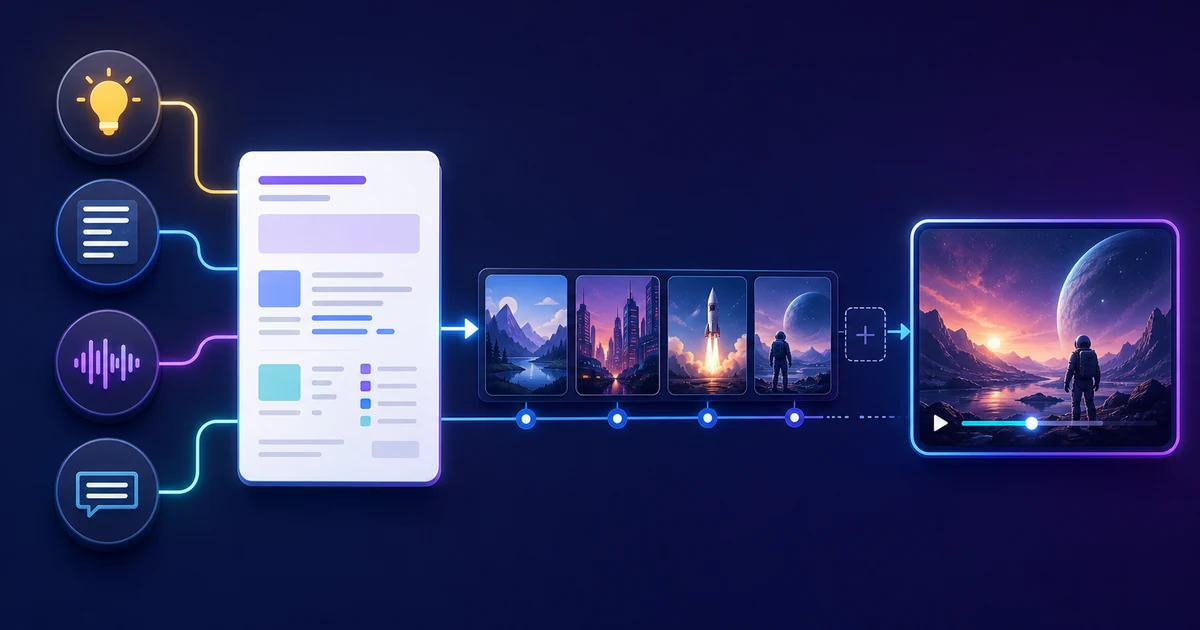
The most visible moment in AI video creation is the generate button. An idea becomes a script, the script becomes voice and subtitles, scenes receive visuals, music is added, and a video draft appears. But the reason teams redo AI videos is often not that the AI was weak. It is that too many decisions were left for the AI to guess.
A production brief does not need to be a long strategy document. One page is enough: the video's job, first viewer, required scenes, must-use images, subtitle and music rules, and export target. In VMAI, that one page makes the input mode easier to choose and the review stage easier to judge.
Without a brief, the AI has to guess the real assignment
“Make a product intro video” can mean many different things.
| Missing decision | What the AI has to guess |
|---|---|
| Who the viewer is | Beginner explanation or purchase comparison |
| Which assets are mandatory | Generic stock image or real product photo |
| What tone fits | Bright promotion or calm education |
| How important subtitles are | Muted-feed primary text or supporting captions |
| Where the file will go first | Wide explainer or vertical short-form clip |
When these decisions are blank, the result can look polished and still not feel like your video. That is why a short production standard should come before a clever prompt.
1. Start with what the video needs to accomplish
The first line of the brief should be an outcome, not a feature label.
A weak version sounds like this:
"A video introducing an AI video creation tool
A stronger version is narrower:
"Help a first-time visitor understand, in under 60 seconds, whether they should start VMAI from Idea Mode or Script Mode.
That line shapes scene length, caption density, visual selection, and music tone. When the goal is clear, the review question changes from “Do I like it?” to “Does this scene do the job?”
2. Choose the input mode by what is already fixed
VMAI's new-video flow supports starting from an idea, script, audio, or subtitle file. The best choice is not the mode that feels most advanced. It is the mode that preserves the most already-approved material.
- If you only have a topic, start with Idea Mode and let the first script draft take shape.
- If the spoken wording is already approved, Script Mode is safer.
- If the source is a recording or lecture, Audio Mode can turn speech into subtitles and scenes.
- If the timing is already reviewed in SRT/VTT, Subtitle Mode helps preserve that timing.
Add one line to the brief explaining why this input mode is the starting point. That keeps the project from reopening the same decision halfway through the workflow.
3. Separate what must be locked from what AI can choose
Specifying every visual removes the benefit of automation. Letting every visual be guessed can break scenes that require real brand, product, or event imagery.
Split scenes into three groups.
| Scene type | Example | Practical rule |
|---|---|---|
| Must be locked | Product photo, founder image, event venue | Use prepared images or a media pack |
| Needs direction | “Problem moment,” “comparison scene” | Brief the mood and search direction |
| Can be flexible | Background transition, abstract support visual | Let VMAI's media selection flow help |
This makes review faster. Instead of saying “this image is not pretty,” you can say “this scene needed a locked product image, but a generic visual was used.”
4. Set voice, subtitles, and BGM by viewing context
Voice, subtitles, and background music change the feel of the whole video. If they are chosen by taste alone, they drift. Use the viewing context first.
- If muted autoplay matters, subtitle readability comes first.
- If the video explains something, do not push caption line length or voice speed too hard.
- If the video is branded, BGM should support the tone without covering the message.
- If the video is educational, pronunciation and terminology should be decided before generation.
VMAI lets you adjust voice, subtitle display, background music, and segment splitting as part of the creation flow. The right setting still depends on the job of the video, so the brief should define that job first.
5. Write review and render criteria before the draft appears
In AI video work, review is not just a final check. It is where the draft becomes a deliverable. End the brief with practical pass/fail rules:
- which scenes must be replaced;
- where captions must not cover the subject;
- when BGM is too loud against narration;
- whether a review render and final render should be separate;
- which aspect ratio and resolution match the first destination.
Without these rules, every review round can use a different standard. With them, edits are faster and render versions are easier to compare.
A brief does not slow automation down; it protects it
The benefit of AI video creation is speed. But fast generation is not the same as fast completion. If input mode, scene assets, subtitles, music, and export settings are decided on the fly every time, review takes longer.
Before your next prompt, fill in these five lines:
- What should the viewer do after watching?
- Will this project start from an idea, script, audio, or subtitle file?
- Which images or assets must be used exactly?
- What must not go wrong in voice and subtitles?
- What render target fits the first publishing destination?
For a hands-on worksheet, follow Create a One-Page AI Video Production Brief. If you are new to the whole workflow, start with Getting Started with VMAI.
Enjoyed this article?
Subscribe to get notified when we publish new posts. No spam, unsubscribe anytime.
Related Articles
Your AI Video Isn't Too Long. Its Scenes Are Repeating Themselves
If trimming seconds does not fix a slow AI video, look for repeated explanations, visuals, and emotional beats. Give every scene one distinct job before cutting useful detail.
The Video Ending Mistake That Wastes a Good AI Video
A polished AI video can still end without giving viewers a clear next step. Design the video ending around one outcome, one call to action, and one trust cue before you render.
Why AI Videos Look Like Random Stock Footage
Even relevant visuals can feel random when color, framing, subjects, and motion change without a rule. Use a simple video style guide to make an AI video feel like one story before rendering.
Comments
Please login to leave a comment
LoginNo comments yet. Be the first to comment!